

Install a USB driver for HP Laser 107a or 107w printer on macOS Tahoe and later
I spent an afternoon installing an aged a printer on macOS, perhaps I’ll save you some time.
The HP 107a printer was released in 2019. It has aged, but can still be brought to life.
This approach has been confirmed to work with to the latest macOS Tahoe (version 26), and should work for Sequoia, Sonoma, Ventura, Monterey and Big Sur as well.
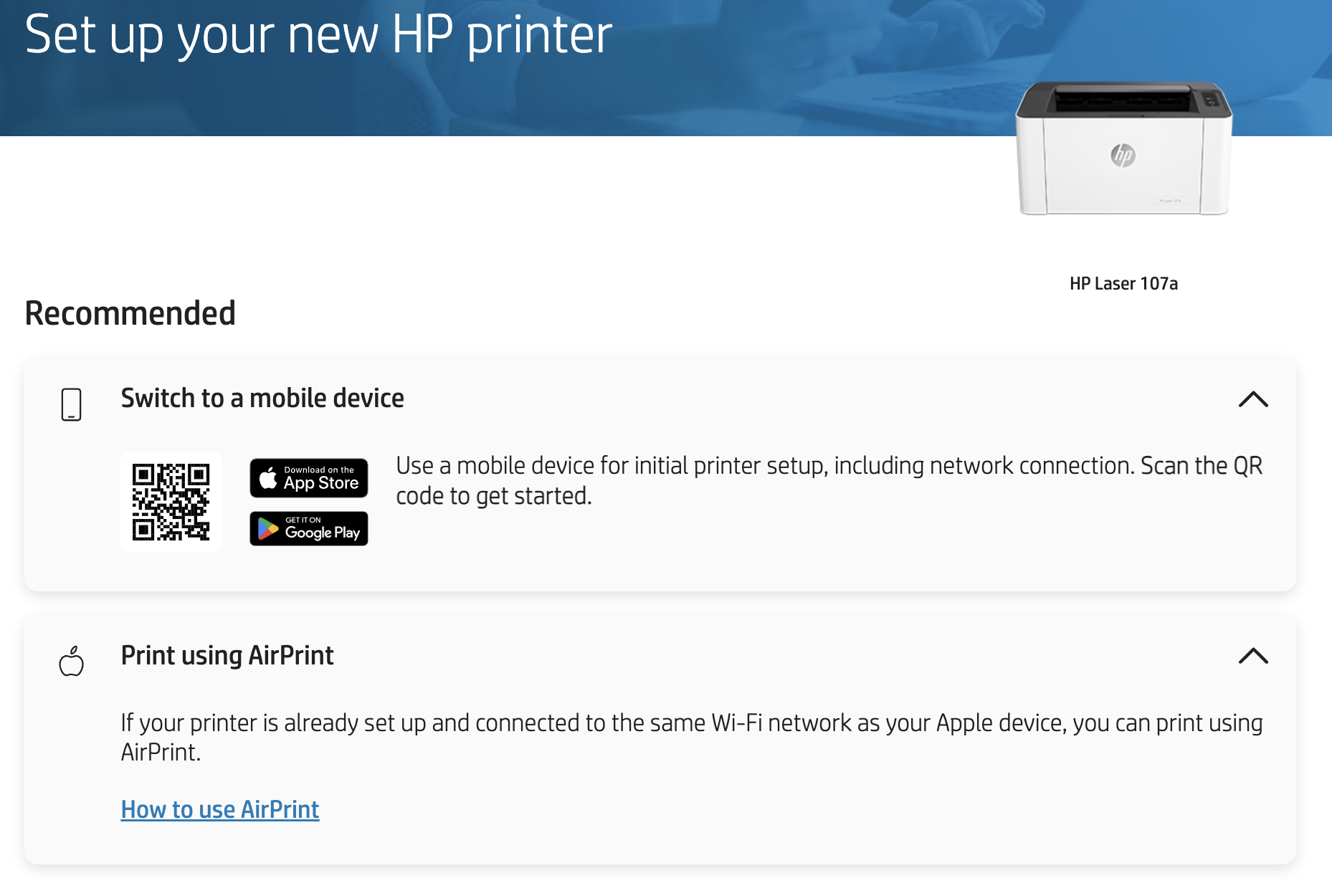
Frustratingly bad advice from HP
Hewlett Packard guides users to the 123.hp.com portal, but lists incorrect advice for setting up the printer. According to the page, the recommended option is switching to a mobile device, or using AirPrint. This would be sound advice if the printer had WiFi, but it supports only USB.
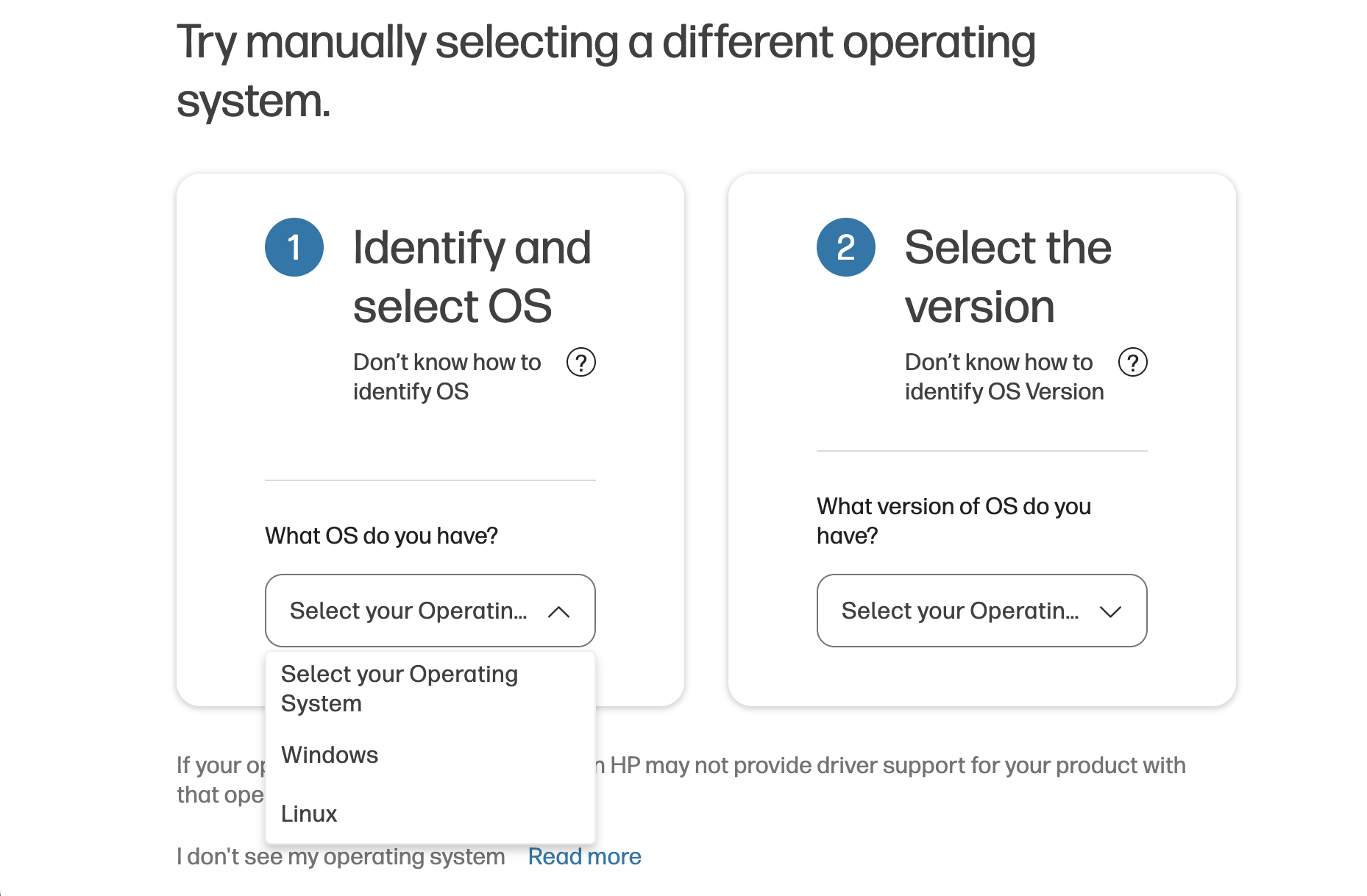
You might also venture into the the HP software and drivers section. If you’re reading this, there’s a good chance you have already realized, that the official Software and Drivers pages for 107a and the 107w don’t list macOS as an option. The “What OS do you have?” drop-down only lists Windows and Linux.
Clicking “I don’t see my operating system” takes you to another page, which presents more outdated advice and provides download links to (outdated) drivers for macOS1. Those only work on old systems up to macOS Monterey (version 12).
I also tried The HP Smart app, but wasn’t able to discover the printer via USB. It’s primarily meant for networked printers.
Solution
As of 2020, Mac full feature drivers are no longer officially available for most consumer HP printers2,3. Also, the “Generic PostScript Printer” driver is no longer supplied with macOS4.
Compatible drivers
There are still drivers that work with these printers. A helpful thread on Apple Discussions on LaserJet 107a and 107w mentions that using HP universal driver for Samsung5 printers works.
Use these compatible drivers based on which printer you have:
- Samsung M2010 Series if you have the HP Laser 107a printer
- Samsung M2020 Series if you have the HP Laser 107w printer
Where to download the driver
Finding the universal driver for Samsung from the HP website is tedious. Here are the direct download links:
| Version | Download (ftp.hp.com) | Notes |
| 3.93.08 | Samsung_Mac_Driver_V3.93.08.dmg | |
| 3.92.00 | Samsung_Mac_10.15_Driver_V3.92.00.dmg | Verified to work with macOS Tahoe. |
| 3.93.01 | Samsung_Mac_Driver_V3.93.01.dmg | |
| 3.72.01 | M2020_Series_Mac_PrinterDriver_V3.72.01.zip |
Download and install the latest driver from above. Then proceed to System Settings and the Printers & Scanners section.
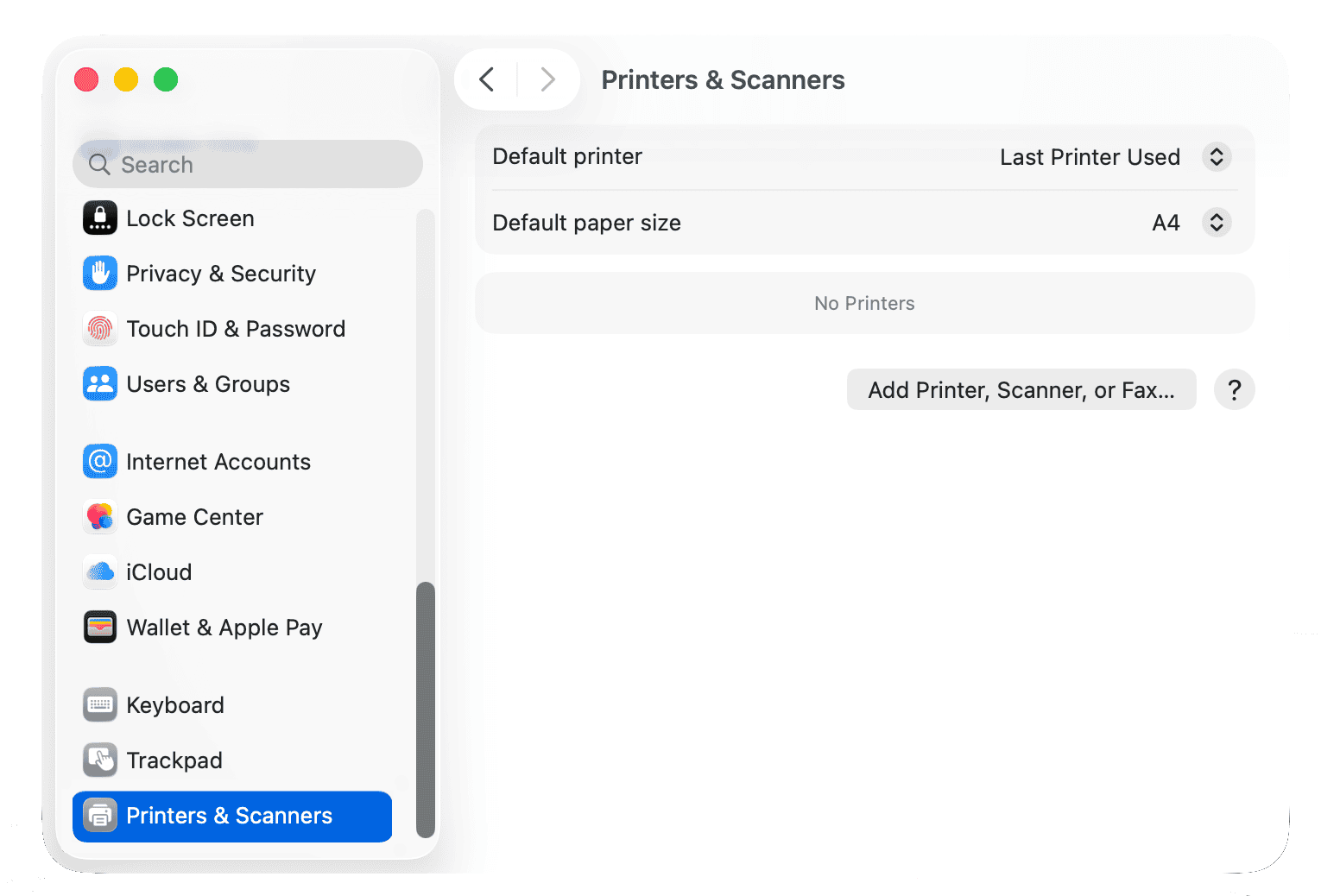
Click “Add Printer, Scanner or Fax”. Your printer should be listed as “HP Laser 103 107 108”. Select the printer and and select the compatible driver as listed above. You will have to select a compatible Samsung driver for your HP Printer:
- Samsung M2010 Series if you have the HP Laser 107a printer
- Samsung M2020 Series if you have the HP Laser 107w printer
Proceed to finish the setup; if you’re lucky, the printer should now work under macOS.
-
My operating system is not listed on HP Software and Driver Downloads on hp.com. ↩
-
Using HP Utility with an HP printer (macOS) (archived) ↩
-
Also the GutenPrint project has stopped supporting macOS and only supports macOS up to Mojave (version 10). ↩
-
I could not find any source on this. But it’s not available in the “Add printer dialog”. ↩
-
HP acquired Samsungs printer business in 2017, press release on hp.com. ↩